
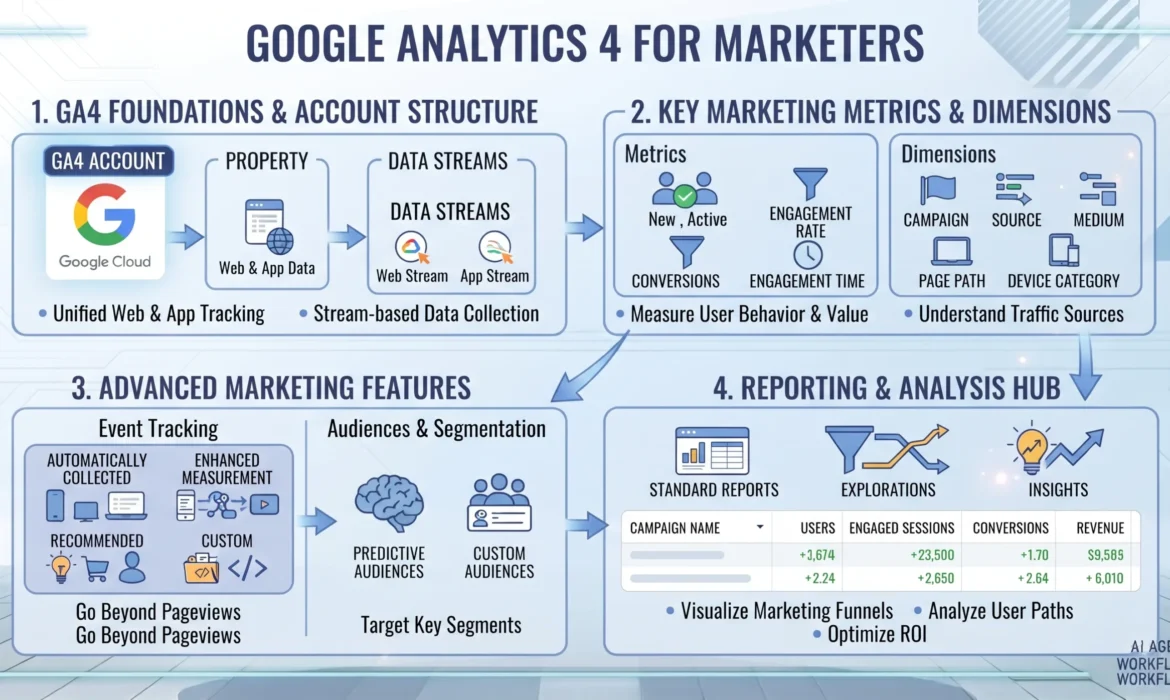
Google Analytics 4 is now the only version of Google Analytics available, yet many marketers still find its reporting interface, data model, and terminology confusing compared to the old Universal Analytics. This guide explains how GA4 actually works, how its event-based data model differs from previous versions, and what marketers need to set up and interpret correctly to make informed decisions. Whether you’re migrating from Universal Analytics or setting up GA4 for the first time, you’ll find practical, step-by-step guidance here rather than just a feature list.
What Is Google Analytics 4?
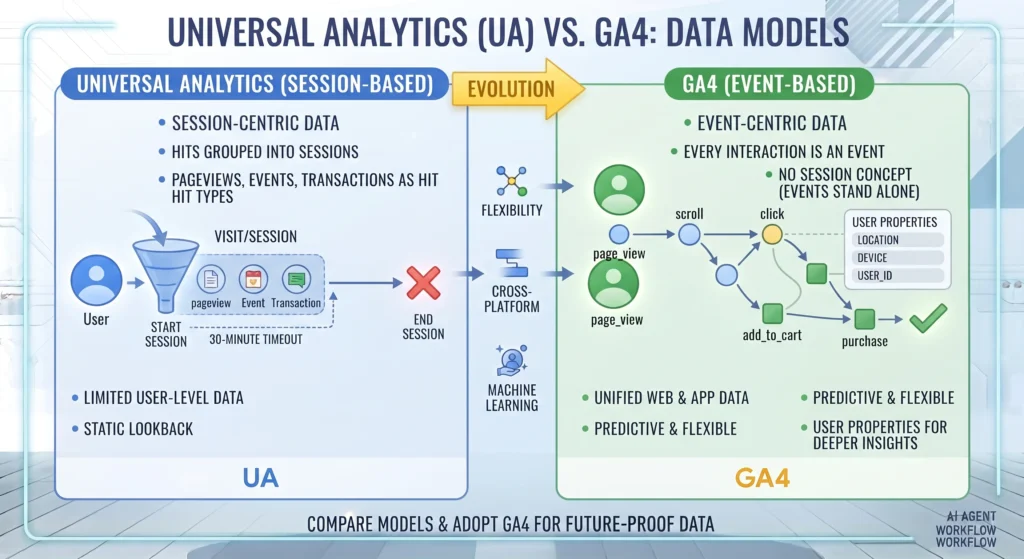
Google Analytics 4 (GA4) is Google’s current web and app analytics platform, built on an event-based data model rather than the session-based model used by its predecessor, Universal Analytics. GA4 tracks user interactions — such as page views, clicks, scrolls, and purchases — as individual events, which allows for more flexible reporting across websites and apps within a single property. GA4 also integrates more directly with Google Ads, uses machine learning to fill reporting gaps left by privacy restrictions, and replaced Universal Analytics entirely after Google stopped processing new UA data in July 2023.
Key Takeaways
- GA4 tracks everything as an event rather than organising data into sessions and hits, which changes how marketers need to think about reports and metrics.
- A correctly configured GA4 property depends on accurate event tracking, conversion marking, and data stream setup — most reporting problems trace back to one of these three things.
- GA4 integrates directly with Google Ads, meaning accurate GA4 conversion data can directly improve Google Ads bidding and attribution.
- Google’s privacy-driven changes, including reduced reliance on cookies, have pushed GA4 toward modelled data and machine-learning-based gap-filling in standard reports.
- Common mistakes include relying solely on GA4’s default event tracking, misunderstanding “Engaged sessions,” and failing to set up conversion events before analysing performance.
What Is Google Analytics 4 and Why Did It Replace Universal Analytics?
Google Analytics 4 is the successor to Universal Analytics (UA), and as of 1 July 2023, Google stopped processing new data in standard UA properties, making GA4 the only supported version going forward. According to Google’s own GA4 documentation, the platform was rebuilt around an event-based data model specifically to support cross-platform measurement — meaning the same property can track both a website and a mobile app — and to better accommodate a future with less reliance on third-party cookies.
This shift matters because Universal Analytics was built for a web-only, cookie-dependent world. As browsers restricted tracking and users increasingly moved between devices and apps, Google needed a data model flexible enough to follow users across those boundaries without depending entirely on persistent identifiers. GA4’s event-based structure, combined with Google’s Consent Mode and modelled conversions, was designed as the long-term answer to that problem.
How Does GA4’s Event-Based Data Model Actually Work?
In GA4, every interaction a user takes — a page view, a button click, a video play, a purchase — is recorded as an event, rather than being split into the old UA categories of “sessions,” “hits,” “pageviews,” and “events” as separate concepts. Each event can carry parameters (additional details about that event), which gives marketers far more flexibility in what they track without needing custom code for every new metric.
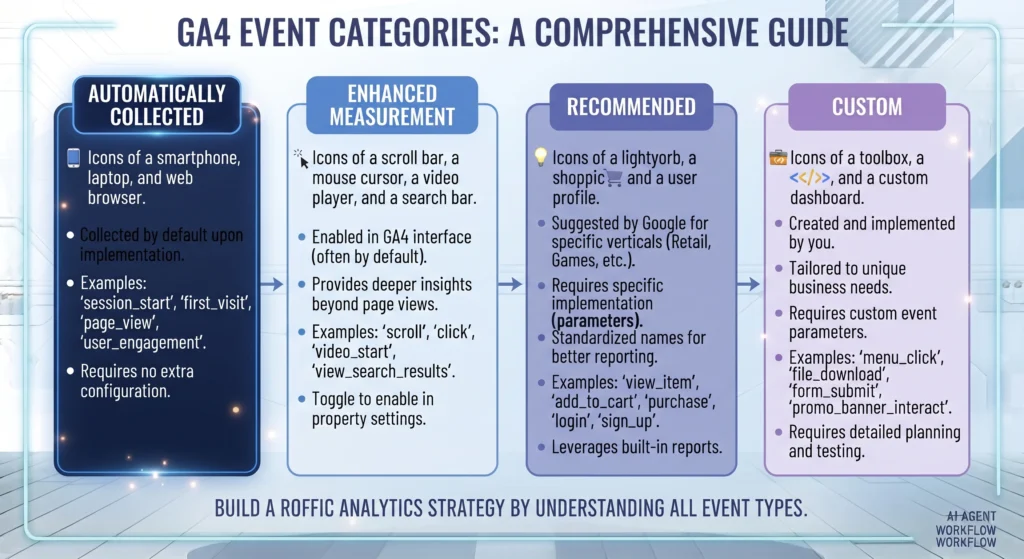
Four categories of events exist in GA4:
- Automatically collected events — such as
page_view,session_start, andfirst_visit, which GA4 tracks without any extra configuration. - Enhanced measurement events — such as scrolls, outbound clicks, site search, and video engagement, which can be toggled on or off within the data stream settings without code.
- Recommended events — pre-named events Google suggests for common use cases, like
purchaseorsign_up, which ensure consistent naming for standard reports. - Custom events — events you define yourself for actions specific to your business that aren’t covered by the categories above.
This structure means GA4 reports behave differently from UA reports. Metrics like “sessions” still exist, but they’re calculated from underlying events (session_start) rather than being the foundational unit of measurement.
Important Subtopics Within GA4
GA4 Data Streams
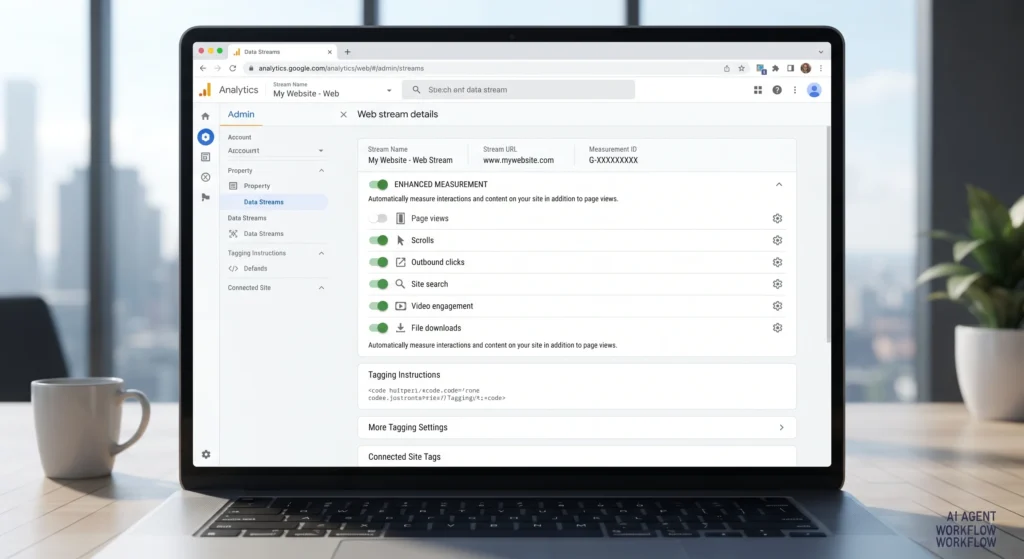
A data stream is the source of data flowing into a GA4 property — typically a website, an iOS app, or an Android app. A single GA4 property can contain multiple data streams, which is what enables cross-platform reporting that wasn’t possible in Universal Analytics. Each data stream has its own measurement ID (for web) and its own enhanced measurement settings.
Conversions and Key Events
In GA4, conversions are called “key events” in more recent interface updates, and they’re marked by flagging specific events as conversions rather than defining entirely separate conversion goals as UA did. This is a meaningful shift: because any event can become a key event, marketers need to be deliberate about which actions genuinely represent business value, rather than marking too many or too few events as conversions.
GA4 and Google Ads Integration
When a GA4 property is linked to a Google Ads account, key events can be imported directly as conversion actions, and GA4 audiences can be used for remarketing and bidding within Google Ads. This integration is one of the strongest reasons to configure GA4 correctly from the start, since inaccurate or missing key events will directly limit what Google Ads’ automated bidding strategies can optimise towards.
Explorations and Custom Reporting
GA4’s “Explorations” feature allows marketers to build custom reports — funnels, path explorations, segment overlaps, and cohort analyses — that go beyond the standard pre-built reports. This has become essential in GA4 because the default reporting interface is intentionally simplified compared to UA, pushing more advanced analysis into Explorations.
Modelled Data and Consent Mode
Because of privacy regulations and reduced cookie availability, GA4 increasingly relies on modelled data to estimate conversions and user behaviour it can’t directly observe, particularly for users who decline tracking consent. Google’s Consent Mode works alongside this by adjusting how tags behave based on a user’s consent choices, while still allowing GA4 to produce modelled estimates to fill in reporting gaps.
How to Set Up Google Analytics 4: Step-by-Step
- Create a GA4 property. If you’re migrating from UA, Google likely auto-created a GA4 property already; otherwise, create one from the Google Analytics admin panel.
- Set up your data stream(s). Add a web data stream for your website, and app data streams if you have a mobile app, to enable cross-platform tracking within one property.
- Install the tracking code or use Google Tag Manager. Most marketers implement GA4 via Google Tag Manager for easier long-term management of tags and triggers, rather than hardcoding the GA4 tag.
- Enable enhanced measurement. Review which automatic events (scrolls, outbound clicks, video engagement) make sense for your site and leave the relevant toggles on.
- Mark key events (conversions). Identify the handful of events that represent genuine business value — purchases, form submissions, sign-ups — and mark them as key events.
- Link Google Ads (if applicable). Connect your GA4 property to Google Ads so key events can inform bidding and so GA4 audiences can be used for remarketing.
- Set up custom events where needed. For actions GA4 doesn’t track automatically or through recommended events, configure custom event tracking via Tag Manager or the GA4 Measurement Protocol.
- Build Explorations for deeper analysis. Once data starts flowing, create funnel and path explorations relevant to your specific business questions rather than relying solely on standard reports.
A Practical Example of GA4 Setup
Consider an online furniture retailer migrating from Universal Analytics. The GA4 property is created with a single web data stream for the main site. Enhanced measurement is left on for scrolls and outbound clicks, since the product pages contain supplier links. Three recommended events are configured: view_item, add_to_cart, and purchase, with purchase marked as a key event. The GA4 property is linked to Google Ads, allowing the purchase key event to flow into Google Ads as a conversion action for Smart Bidding. After a few weeks of data collection, the marketing team builds a funnel exploration in GA4 to see where users drop off between view_item and purchase, identifying that a large share of users abandon at add_to_cart — a signal worth investigating with on-site testing.
Benefits of Using Google Analytics 4
- Cross-platform measurement, combining website and app data within a single property for a more complete view of user behaviour.
- Deeper integration with Google Ads, allowing key events to directly inform automated bidding strategies.
- More flexible event tracking, since any user interaction can become a trackable event without rigid category restrictions.
- Built-in privacy accommodations, including Consent Mode and modelled data, designed for a cookie-restricted future.
- Custom analysis through Explorations, giving marketers the ability to build funnels and path reports tailored to specific business questions.
Challenges and Limitations of GA4
- Steeper learning curve, since the event-based model and renamed metrics require marketers familiar with UA to relearn core concepts.
- Data gaps from modelling, particularly for conversions involving users who decline consent, which can make smaller datasets harder to interpret confidently.
- Simplified default reports, which often push marketers into Explorations for analysis that used to be available in standard UA reports.
- Historical data loss, since GA4 data doesn’t carry over from Universal Analytics, making year-over-year comparisons difficult for recently migrated accounts.
- Sampling and thresholding, which can appear in Explorations or reports involving small user counts, particularly when consent-based data modelling applies.
Common GA4 Mistakes to Avoid
- Relying only on automatically collected events — without configuring recommended or custom events, many businesses miss tracking the actions that actually matter to them.
- Marking too many events as key events — this dilutes what “conversion” means in reports and can confuse Google Ads bidding signals.
- Ignoring Google Tag Manager — hardcoding tags directly onto a site makes future changes slower and more error-prone than managing them centrally through Tag Manager.
- Misreading “Engaged sessions” — this metric isn’t equivalent to UA’s “sessions,” and treating it the same way leads to incorrect year-over-year comparisons.
- Delaying GA4 setup — since GA4 doesn’t import historical UA data, properties set up late have correspondingly shorter historical records to analyse trends against.
GA4 Best Practices for Marketers
- Set up conversion tracking before analysing performance, since reports built on misconfigured key events will mislead every decision that follows.
- Use Google Tag Manager to manage tags, triggers, and custom events centrally, rather than editing site code directly for every change.
- Build a small number of meaningful key events rather than flagging every possible interaction as a conversion.
- Check Explorations regularly, not just the standard reports, since much of GA4’s analytical power sits outside the default interface.
- Audit data streams periodically to confirm enhanced measurement settings still match current site behaviour, especially after redesigns.
Frequently Asked Questions
Is Universal Analytics still available?
No. Google stopped processing new data in standard Universal Analytics properties on 1 July 2023, and GA4 is now the only supported version of Google Analytics.
What is the difference between GA4 and Universal Analytics?
The core difference is the data model: Universal Analytics organised data around sessions and hits, while GA4 treats every interaction as an individual event with optional parameters, enabling more flexible cross-platform reporting across websites and apps.
Do I need Google Tag Manager to use GA4?
No, GA4 can be implemented with a direct tracking snippet, but most marketers use Google Tag Manager because it simplifies managing and updating tags, triggers, and custom events without editing site code each time.
What are GA4 key events?
Key events (previously called conversions) are specific GA4 events marked as representing meaningful business outcomes, such as purchases or form submissions, and they can be imported into Google Ads as conversion actions for bidding.
Why does my GA4 data not match Universal Analytics?
GA4 and UA use different data models and metric definitions, so exact matches are not expected. Differences in session definitions, event tracking, and data modelling for privacy compliance all contribute to discrepancies between the two platforms.
Final Takeaway
Google Analytics 4 isn’t simply a redesigned version of Universal Analytics — it’s a fundamentally different data model built for a cross-platform, privacy-conscious future. Marketers who treat GA4 setup as a one-time checkbox often end up with incomplete or misleading reports, while those who deliberately configure data streams, key events, and Tag Manager integration build a foundation that actually supports good decision-making. Start by auditing your current GA4 event setup, confirm your key events reflect genuine business value, and build out Explorations for the specific questions your business needs answered.
For guidance on connecting GA4 to your advertising accounts, see our Google Ads conversion tracking guide, and for a broader look at structuring tracking across your marketing stack, our Google Tag Manager and conversion tracking guide covers the setup in more detail.


