
Installing tracking codes directly into WordPress theme files is fragile. One update, one new plugin, or one careless edit, and your conversion tracking silently breaks — often without anyone noticing until the reports look wrong weeks later. Google Tag Manager solves this by giving you one central place to manage every tracking script on your WordPress site, without touching your theme’s code each time something changes. This guide explains what Google Tag Manager is, how it works on WordPress specifically, and how to set it up correctly from the first install to your first working tag.
What Is Google Tag Manager for WordPress?
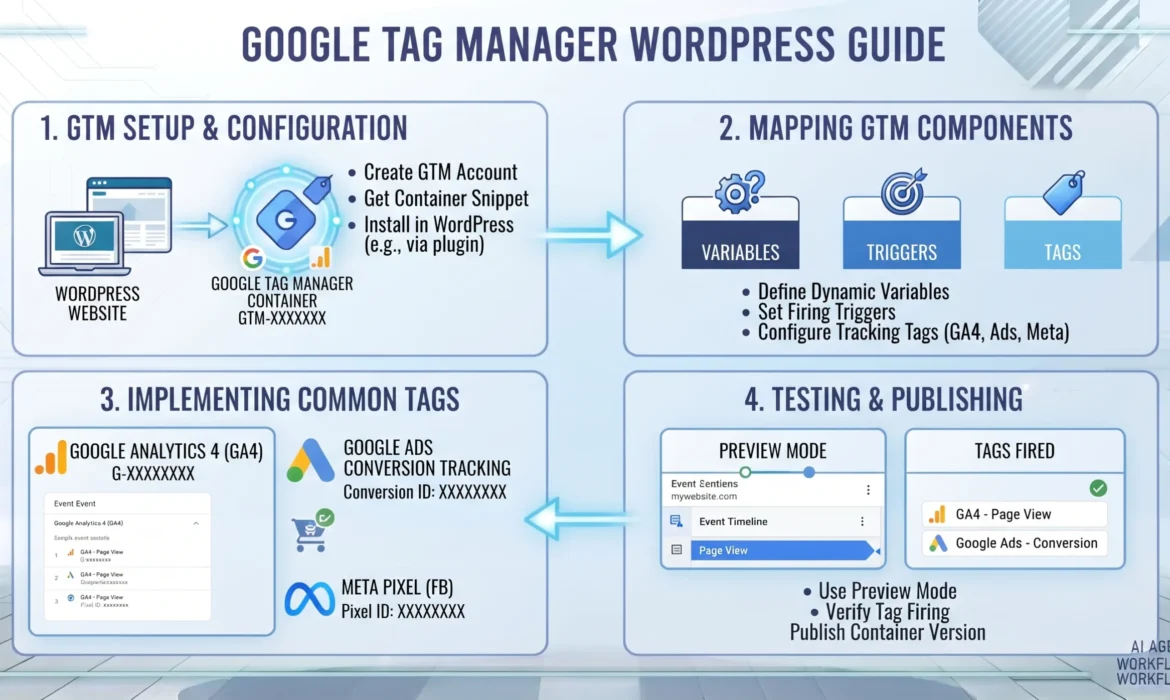
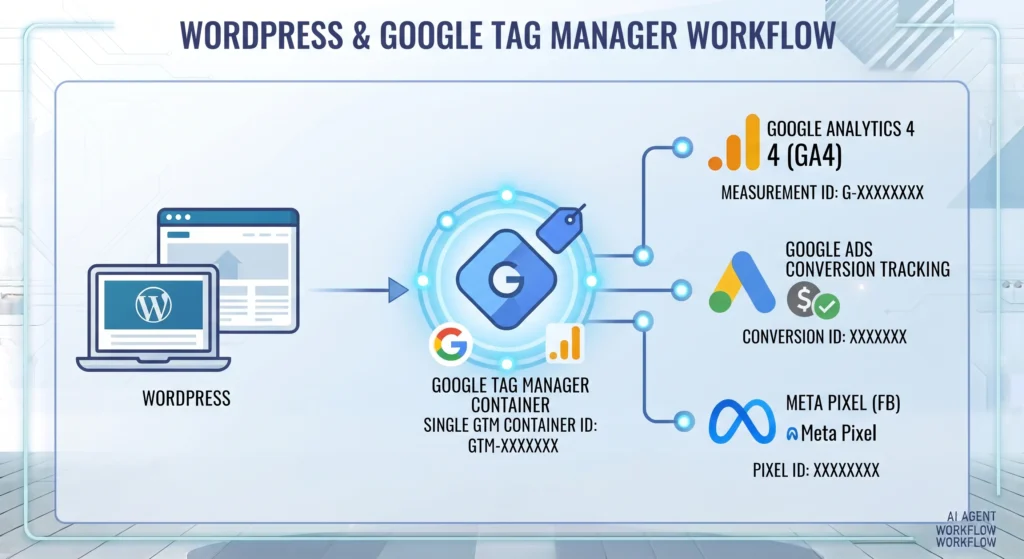
Google Tag Manager (GTM) is a free tool from Google that lets you add and manage tracking codes — such as Google Analytics, Google Ads, and Meta Pixel — on your WordPress site through a single container, instead of editing theme files directly. You install one small snippet of GTM code on your site (usually via a plugin), then manage every other tag, trigger, and variable from the GTM web interface. This separates tracking management from your website’s codebase, making it faster and safer to add, edit, or remove tracking tools.
Key Takeaways
- Google Tag Manager lets you manage all your WordPress tracking tags from one dashboard, rather than editing theme files for every new script.
- GTM uses three core building blocks — tags, triggers, and variables — that work together to decide what fires, when, and under what conditions.
- On WordPress, GTM is typically installed through a dedicated plugin rather than manual code edits, which reduces the risk of errors during theme updates.
- Accurate conversion tracking through GTM depends on correctly configured triggers and a properly installed Google Analytics or Meta Pixel tag, not just the container snippet itself.
- Common mistakes include publishing containers without testing in Preview mode and duplicating tracking codes already present in a plugin.
What Is Google Tag Manager and Why Does It Matter for WordPress Sites?
Google Tag Manager is a tag management system that acts as a middle layer between your website and the various tracking tools you use. Instead of pasting the Google Analytics snippet into your header, then separately adding a Google Ads conversion tag, then a Meta Pixel, you add one GTM container snippet to your WordPress site. Everything else is configured inside the GTM interface.
This matters specifically for WordPress because the platform relies heavily on plugins and themes that get updated frequently. According to Google’s Tag Manager documentation, GTM was built to let marketers and developers deploy and update tags without requiring a developer to edit site code each time. For a WordPress site, that means fewer theme edits, fewer plugin conflicts around tracking scripts, and a clearer record of exactly what tracking is running on your site.
How Does Google Tag Manager Actually Work?
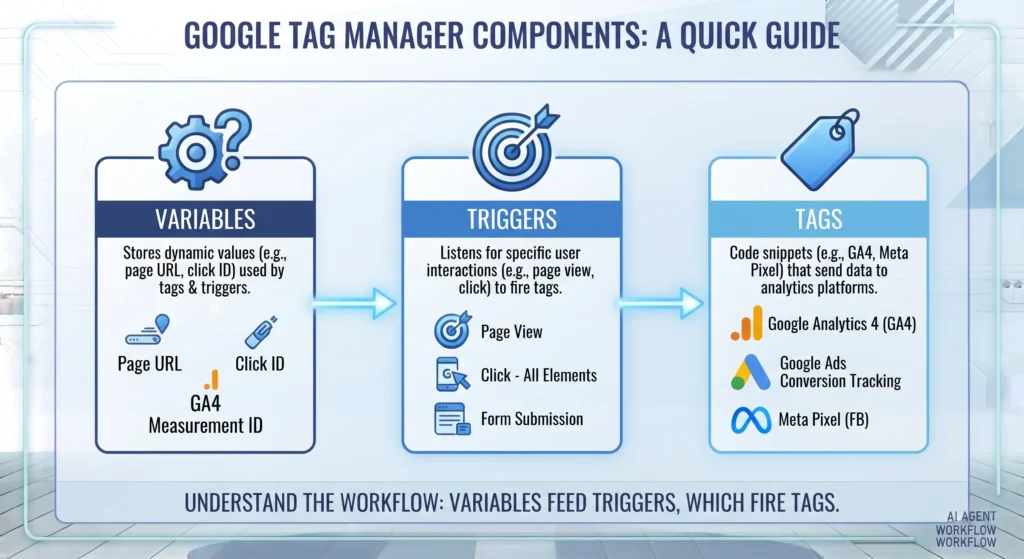
GTM is built around three components that work together:
- Tags — the tracking scripts themselves, such as a Google Analytics configuration tag or a Meta Pixel event tag.
- Triggers — the conditions that determine when a tag should fire, such as “all pages”, “form submission”, or “button click”.
- Variables — dynamic values used by tags and triggers, such as a click URL, a page path, or a transaction value.
When a visitor loads a page on your WordPress site, the GTM container checks which triggers match the current conditions, then fires the tags attached to those triggers. For example, a “Purchase” tag might be set to fire only when a trigger detects that a visitor has reached a specific order confirmation URL.
Important Subtopics Within GTM for WordPress
GTM vs Plugin-Based Tracking
Many WordPress tracking plugins (such as those built specifically for Google Analytics or Meta Pixel) insert their tracking code directly into the site’s header. This works, but every new tool requires installing another plugin, which increases the number of active plugins and the surface area for conflicts. GTM consolidates this into one container, so adding a new tracking tool means adding a new tag inside GTM rather than installing another plugin.
GTM and Google Analytics 4 (GA4)
GTM doesn’t replace GA4 — it’s the mechanism many sites use to deploy GA4 correctly. Instead of adding the GA4 configuration snippet directly to your theme, you create a GA4 Configuration tag inside GTM, set it to fire on all pages, and let GTM handle the deployment.
GTM and the Meta Pixel
The same principle applies to the Meta Pixel. Rather than pasting Facebook’s base pixel code into your WordPress header manually, you can deploy it as a custom HTML tag inside GTM, triggered on all pages, with additional event tags (such as Purchase or Lead) triggered on specific pages or actions.
Server-Side Tagging
For sites with more advanced tracking needs, GTM also supports a server-side container, which processes tags on a server rather than in the visitor’s browser. This is more relevant for larger WordPress sites dealing with browser-based tracking restrictions, and typically requires more technical setup than the standard web container.
How to Install Google Tag Manager on WordPress: Step-by-Step
- Create a GTM account and container. Go to tagmanager.google.com, create an account, and set up a new container with “Web” as the target platform.
- Copy your container snippets. GTM will give you two code snippets — one for the
<head>and one for the<body>. - Install a GTM plugin. Plugins such as “GTM4WP” or “Google Tag Manager for WordPress” let you paste your container ID without manually editing theme files.
- Add your container ID. Enter the GTM container ID (format: GTM-XXXXXXX) into the plugin settings.
- Create your first tag. Inside GTM, add a GA4 Configuration tag (or your chosen tracking tool), set the trigger to “All Pages”, and save.
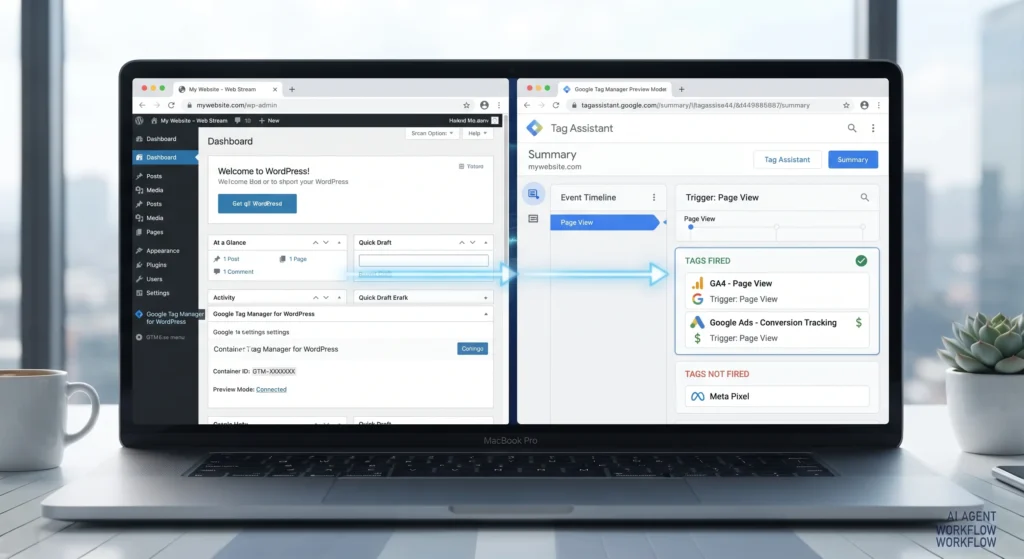
- Test in Preview mode. Use GTM’s built-in Preview mode to confirm the tag fires correctly on your live site before publishing.
- Publish the container. Once testing confirms everything works as expected, publish the container to make the changes live.
A Practical Example of GTM Setup on WordPress
Consider a WordPress-based online store that wants to track purchases for both Google Analytics and Meta Ads reporting. After installing the GTM container through a plugin, two tags are created: a GA4 Configuration tag set to fire on all pages, and a GA4 Purchase event tag set to fire only when a visitor reaches the order confirmation page. A separate Meta Pixel Purchase tag is added using the same trigger, so both platforms receive the same conversion signal from a single page-load event. Before publishing, Preview mode is used to confirm both tags fire correctly on a test transaction, avoiding the risk of pushing broken tracking to a live store.
Benefits of Using Google Tag Manager on WordPress
- Centralised tracking management — every tag lives in one dashboard instead of scattered across multiple plugins.
- Fewer theme edits — new tracking tools can usually be added without a developer touching site code.
- Faster updates — changing or removing a tag doesn’t require a plugin update or theme change.
- Built-in testing tools — Preview mode allows tags to be checked before they go live, reducing broken tracking.
- Version control — GTM keeps a history of container changes, making it possible to roll back if something breaks.
Challenges and Limitations of GTM on WordPress
- Learning curve for non-technical users — understanding tags, triggers, and variables takes some initial learning.
- Plugin conflicts — some WordPress caching or security plugins can interfere with how GTM scripts load.
- Over-reliance on default settings — simply installing the container snippet does nothing on its own; tags still need to be configured correctly.
- Browser tracking restrictions — like other browser-based tracking methods, GTM’s client-side tags are affected by cookie restrictions and ad blockers, which is part of why server-side tagging has grown in relevance.
Common Google Tag Manager Mistakes on WordPress
- Installing GTM and a separate GA4 or Pixel plugin at the same time, which causes duplicate tracking data.
- Publishing a container without testing in Preview mode, risking broken tags going live.
- Setting triggers too broadly, causing conversion events to fire on every page load rather than only on relevant actions.
- Forgetting to remove old hardcoded tracking scripts from the theme after migrating to GTM, which also causes duplicate data.
- Not documenting tag names and purposes, making the container difficult to manage as more tags are added over time.
Best Practices for Managing GTM on a WordPress Site
- Use one plugin for container installation rather than mixing manual code edits and plugin-based installation.
- Name tags, triggers, and variables descriptively, so anyone reviewing the container later understands what each one does.
- Always test in Preview mode before publishing any container changes, even small ones.
- Keep a change log of major container updates, particularly before significant edits.
- Review the container periodically to remove unused or outdated tags, keeping the setup clean as tracking needs evolve.
Frequently Asked Questions
Do I need a plugin to install Google Tag Manager on WordPress?
A plugin isn’t strictly required, since the container snippets can be added manually to your theme’s header and body files. However, most WordPress sites use a plugin because it avoids direct theme edits and reduces the risk of losing the snippet during a theme update.
Does Google Tag Manager slow down a WordPress site?
GTM itself is a lightweight script, but site speed depends on how many tags are configured inside the container and how they’re triggered. A container with dozens of unnecessary tags firing on every page can affect load times, which is why reviewing and cleaning up tags periodically matters.
Can I use Google Tag Manager and a tracking plugin together?
It’s possible, but not recommended, since running both often leads to duplicate tracking events being sent to Google Analytics or Meta Ads. It’s generally better to consolidate all tracking through GTM once it’s installed.
Is Google Tag Manager free to use?
Yes. Google Tag Manager is free for standard web container use. Server-side tagging requires separate hosting, which may carry its own costs depending on the hosting provider used.
What’s the difference between Google Tag Manager and Google Analytics?
Google Tag Manager is a tag management system that deploys tracking scripts; Google Analytics is one of the tools that can be deployed through it. GTM doesn’t collect data itself — it simply manages when and how other tracking tags, including GA4, fire on your site.
Final Takeaway
Google Tag Manager turns WordPress tracking from a collection of scattered plugins and hardcoded scripts into one organised, testable system. The setup itself is straightforward — install the container, add your tags, test in Preview mode, publish — but the real value comes from the discipline around it: naming tags clearly, testing before publishing, and removing duplicate tracking as tools change. Get that foundation right once, and adding new tracking tools later becomes a configuration task inside GTM, not another theme edit.
For a closer look at setting up conversion tracking once GTM is installed, see our guide on Google Ads conversion tracking, and for advertisers running Meta campaigns from the same WordPress site, our Meta Ads: The Complete Facebook & Instagram Advertising Guide covers how the Meta Pixel and Conversions API fit into the same tracking setup.


